

What will you learn from the article?
- What is Shopify Flow and what functions does it perform?
- How does Shopify Flow work and what are its main elements (trigger, condition, action)?
- What are some examples of Shopify Flow being used in eCommerce?
- What are the benefits of automating processes using Shopify Flow?
- What categories of pre-made workflows are available in Shopify Flow?
- How to get started with Shopify Flow, even without advanced technical knowledge?
Shopify Flow is one of the apps available on Shopify (formerly only in Shopify Plus, now also available for basic plans) and is very popular. Shopify Flow is primarily used to automate processes and create workflows within individual store components. In this article, we share twenty examples of Shopify Flow use cases that will be applicable to any e-business running on the platform.
Shopify Flow – what is it?
As mentioned at the beginning, Shopify Flow is used to create dependencies between individual events that lead to specific actions in the store. Shopify Flow consists of three elements:
- Trigger (Polish trigger) is responsible for starting the entire process, it is the first event that starts the designed flow.
- Condition (Polish condition) is the second element that determines whether a specific action defined during flow building is to be performed.
- Action (Polish: action) is what will happen when a certain condition is met.
Shopify Flow can be installed directly from Shopify App Store .
Below are examples of Shopify Flow usage that illustrate how these three elements interact.
How does Shopify Flow work?
Shopify Flow operates based on the previously mentioned components: events, conditions, and actions. The following sections provide specific examples of how to use this tool, but it's worth mentioning at this stage that activating Shopify Flow in the admin panel is very intuitive and available to every Shopify store owner, regardless of the plan chosen, via the Shopify App Store:

Shopify Flow allows you to create simple workflows based on three elements, but Flow can be successfully used to build advanced configurations that are multi-level and interact with each other in many ways.
Shopify Flow is used to automate eCommerce processes, but it is crucial to remember that the appropriate, expected action will only be taken if the Flow is properly constructed and all conditions are met – even a minor deviation will result in the Flow not being launched.
How to get started with Shopify Flow?
It's best to start working with Shopify Flow by creating simple workflows or using the pre-built templates available within the app. The number of ready-to-use scenarios is extensive and divided into ten key categories:
- Buyer Experience (25 ready-made workflows)
- Customers (40 ready-made workflows)
- Fulfillment (20 ready-made workflows)
- Inventory and Merch (37 ready-made workflows)
- Loyalty (36 ready-made workflows)
- Orders (55 ready-made workflows)
- Promotions (13 ready-made workflows)
- Risk (11 ready-made workflows)
- B2B (3 ready-made workflows)
- Payment Reminders (2 ready-made workflows)
After creating a few basic workflows, building subsequent, more complex ones will be much easier.
How to use Shopify Flow effectively?
To use Shopify Flow effectively, you must first define your automation goals. The template library offers dozens of ready-made solutions, but it's not difficult to implement them all, only those that will have a real impact, for example, on the quality of customer service or the management of internal store processes.
Adapting the workflow also has a significant impact on the effective use of Shopify Flow – you should test which ones meet your expectations, and if none of the ready-made solutions are sufficient, design your own, starting with a trigger:

The potential of Shopify Flow for eCommerce development is enormous – properly planned and implemented workflows ensure a fully automated store, to a certain extent. Flow allows store owners to automate store processes and enhance the customer experience.
Shopify Flow – Use Cases
Example No. 1 – Collecting information about negative reviews

Trigger: A new review has appeared in the store
Condition: the review has 2 stars or less
Action: Add this opinion to one collective Excel file
This example uses the Stamped Product Reviews & UGC app. By collecting all the less favorable reviews in one place, the store owner is able to verify their validity, respond more quickly, and implement appropriate remedial measures.
Example #2 – Tag buyers by gender
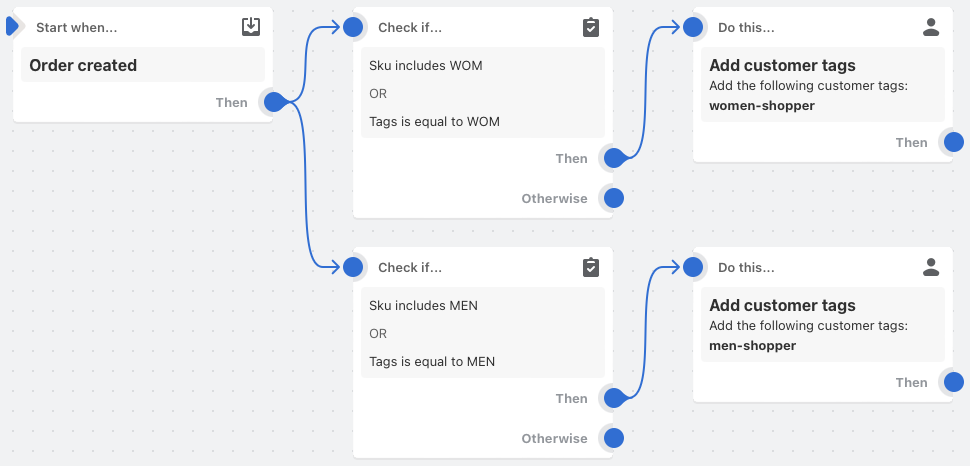
Trigger: Order placed
Condition: the product contains the assigned information 'MAN' or 'WOM' (in the SKU or in the tag)
Action: Assign a specific tag to a specific customer
This type of use of Shopify Flow allows you to categorize customers, which allows you to, for example, target personalized campaigns to a specific group on Women's Day.
Example No. 3 – information about extended product shipping time
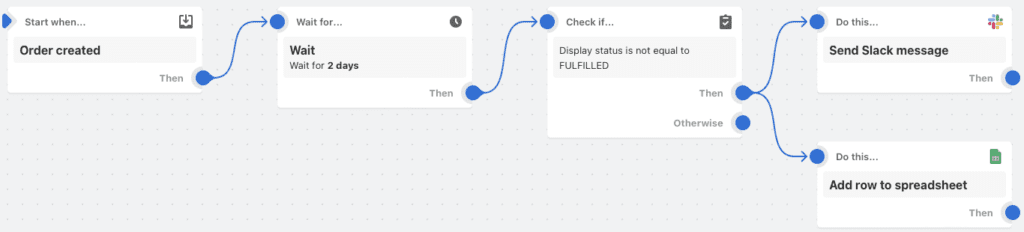
Trigger: Order placed
Condition: at least 2 days have passed + the order status has not changed to 'fulfilled'
Action: Information about longer than standard shipping time is sent to the appropriate person on Slack and is added to the appropriate Google Sheet
In this case, in addition to connecting to Google Sheets, integration with Slack is also implemented. Thanks to this specific workflow, logistics managers will receive relevant information and be able to verify the reason for the order's shipping delay.
Example No. 4 – Product inventory monitoring and tagging
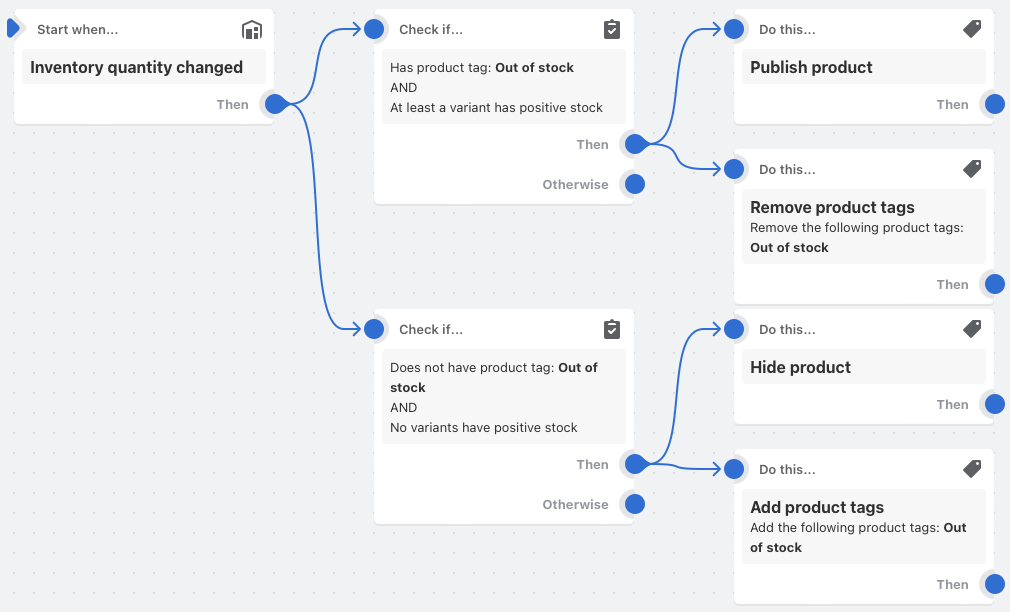
Trigger: The stock level of a given product has changed
Condition:
- Product group I – has an 'out of stock' tag assigned + at least one variant of this product has increased its stock level
- Product group II – no 'out of stock' tag assigned + no product variant is available
Action:
- product group I – publish a product that is back in stock + remove the 'out of stock' tag
- product group II – hide sold out product + add 'out of stock' tag
With this flow setup, sold-out products will be hidden, and those that were previously unavailable will be automatically published when they come back into stock. Products will be tagged accordingly, making them easier to verify.
Example No. 5 – Assigning customers to specific groups and rewarding them as part of a loyalty program

Trigger: Order has been paid
Condition:
- group I – order value is greater than or equal to PLN 1,000
- group II – order value is greater than or equal to PLN 500
Action:
- group I – if it exceeds PLN 1,000, the customer receives a VIP tag (the previous SILVER tag is automatically removed), receives points in the loyalty program, and the relevant person managing the store receives a notification on Slack that a new customer with this tag has appeared
- group II – if it exceeds PLN 500, the customer receives a SILVE tag, receives points in the loyalty program, and the relevant person managing the store receives a notification on Slack that a new customer with this tag has appeared
In this case, the Yotpo Loyalty & Rewards application is additionally used.
Thanks to this flow, it's not necessary to manually assign customers to specific groups that categorize them. Importantly, they also receive loyalty program points automatically.
Example No. 6 – notification about placing an order from a specific domain
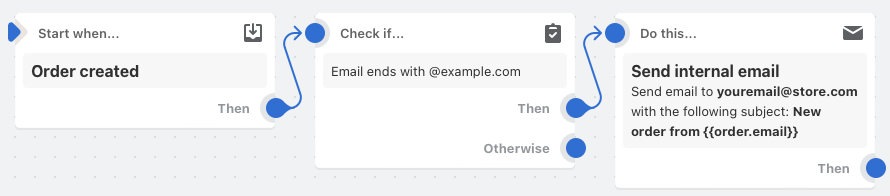
Trigger: Order placed
Condition: the order comes from a specific domain, e.g. …@twojsklepinternetowy.pl
Action: an internal email is sent (to the address you provided) with information that a specific order has arrived from a specific domain
Such a flow will be helpful if we want to have additional information about an order placed from a specific domain, because, for example, we want to treat it as a priority and send it as quickly as possible.
Example No. 7 – Free gift for orders over a certain amount
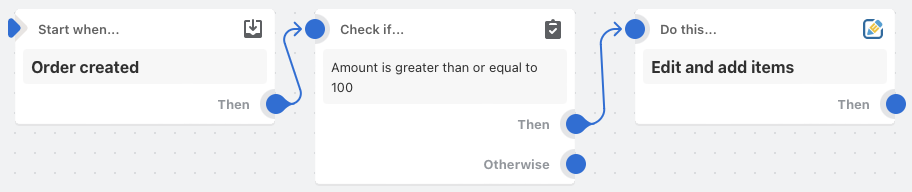
Trigger: Order placed
Condition: the order value exceeds a certain amount, e.g. USD 100
Action: The order is automatically edited and the free gift is added to it
In this case, Shopify Flow works in conjunction with the Cleverific Order Editor app. This workflow is especially helpful when, for example, we want to give customers samples of new products to test, thus encouraging them to order full-size packages with their next order.
Example No. 8 – Discount code for a customer's birthday

Trigger: Customer has a birthday today
Condition: the customer has agreed to receive marketing emails
Action: the customer receives an email with an individual discount code for his/her holiday
Shopify Flow works seamlessly with the LoyaltyLion app (Loyalty, Rewards, and Referrals) and Klaviyo: Email Marketing & SMS. The workflow described above helps customers feel connected to the brand.
Example No. 9 – customer segmentation based on the speed of making a purchase decision

Trigger: Order shipped
Condition: the first order was placed e.g. within 3 days of the first contact with the store
Action: The client receives the appropriate tag and note
Having segmented customers in this way can be used to leverage this information, for example, when we want to sell out of specific products as quickly as possible. Knowing that a specific group of customers makes purchasing decisions quickly, we can target them with a sales campaign.
Example No. 10 – Daily information about sold out products

Trigger: 9:00 PM every day
Condition: -
Action: verifying stock levels, counting products with zero availability and then sending an internal email with information about them.
Thanks to this, Shopify Flow, the owner or those responsible for procurement will receive relevant information every day, thanks to which production can be managed effectively.
Example No. 11 – Assigning a tag when the order contains a specific product

Trigger: Order placed
Condition: the order contains the product specified by us
Action: The order receives a special tag
An example of this workflow would be when we introduce a new cosmetic intended as a complementary line. If a customer has ordered product X, within the next few weeks we'll be able to recommend new product Y, which was created to enhance the effectiveness of cosmetic X.
Example No. 12 – reminder about products added to the wishlist
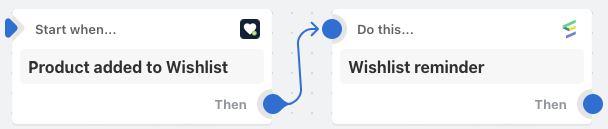
Trigger: product has been added to wishlist
Condition: -
Action: The customer receives a reminder about the saved products at a specific time
Shopify Flow works with Wishlist Plus and Emarsys Marketing Platform and is great for reminding customers about products they were interested in purchasing.
Example No. 13 – Monitoring pre-orders

Trigger: Order placed
Condition: the order contains a product sold as a pre-order (includes the appropriate tag)
Action: the order is added to Google Sheets and a specific event is created in Klaviyo (targeted for a subsequent marketing campaign)
In this case, in addition to Shopify Flow, Google Sheets and Klaviyo are also used. Monitoring preorders and automating subsequent marketing campaigns will be particularly valuable in verifying interest in specific products/product lines.
Example No. 14 – information about using a specific discount code

Trigger: Order placed
Condition: a specific discount code was used when placing the order
Action: Send an internal email stating that code X was used in order Y
This type of use of Shopify Flow will be helpful in situations like this: an influencer has received a discount code to share with their audience for purchases in our store. We want immediate notification that the code has been used, as this campaign only lasts a day and we want to continuously verify the implementation of the goals we assigned to that influencer.
Example No. 15 – Push notification when the order is completed

Trigger: order completed
Condition: the order status has been changed to 'fulfilled'
Action: sending push notifications
By using PushOwl, customers will receive a push notification on their device informing them that their order status has changed. These types of notifications are becoming increasingly popular in online stores.
Example No. 16 – Standardizing Product Tags and Automating Collections
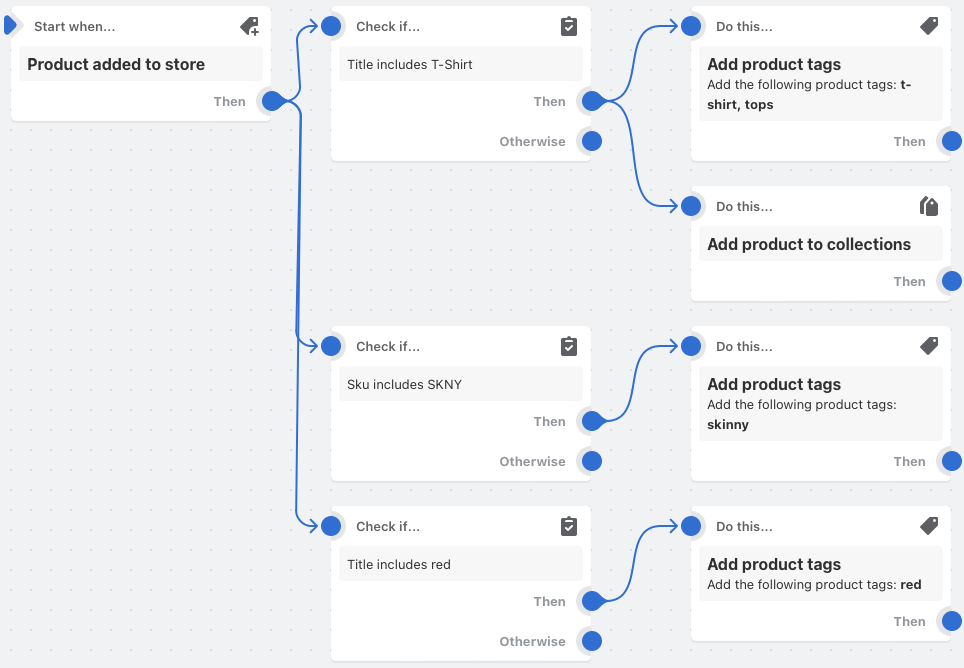
Trigger: Product added to store
Condition:
- group I – check if the name contains the word 'T-Shirt'
- group II – check if the SKU contains the word 'SKNY'
- group III – check if the name contains the word 'red'
Action:
- group I – adding the tag 't-shirt' and 'top' to the product + assigning it to an automatic collection based on the tags
- group II – adding the 'skinny' tag
- group III – adding the 'red' tag
Product tagging is not only useful for automatic addition to a properly configured collection, but is also used for filtering and searching.
Example No. 17 – Control of orders with a large discount applied
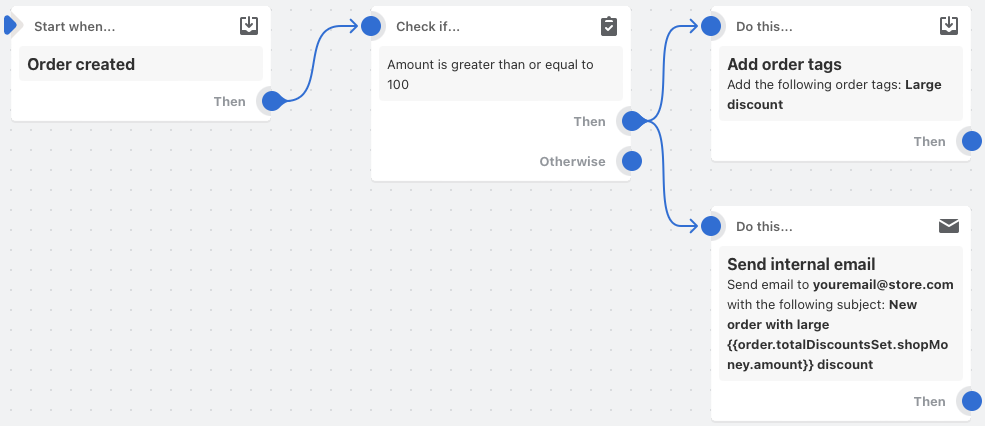
Trigger: Order placed
Condition: the discount value is equal to or greater than the amount, e.g. USD 100
Action: the order receives the tag 'Big discount' + a notification is sent in the form of an internal email with information that order X has discount Y
Thanks to email notification about the occurrence of an unusual discount (its value can, of course, be determined by us), the appropriate person will receive notifications and will be able to verify the reason for calculating the discount of the indicated value.
Example No. 18 – Cancelling orders if a customer places more than 5 orders in one day

Trigger: Order placed
Condition: verify orders + count the number of orders from one customer + determine if there are more than 5 orders
Action: adding a specific tag about the repeatability of the order + cancel orders that may be the result of, for example, the work of a bot
This Shopify Flow can be useful when we experience mass orders placed as a result of bots.
Example No. 19 – Publishing products at a specific time

Trigger: Set the publishing time to a specific date
Condition: Download product data with a specific publication date condition assigned
Action: Publish specific products
Workflow allows you to publish product groups at any pre-defined time, which reduces the need to perform these activities manually.
Example No. 20 – Sending a gift card after placing another order

Trigger: Order placed
Condition: the number of orders of this customer is 3
Action: Generate a gift card for a customer
Rise.ai: Gift Cards & Loyalty works hand in hand with Shopify Flow. Rewarding loyal customers in this way builds a bond with the store and increases the likelihood of them placing regular orders.
The 20 examples of Shopify Flow use cases presented above are worth noting that the app offers many more possibilities. You can use generic workflow templates or create your own.
It's no coincidence that Shopify Flow is considered one of Shopify's most important apps. Most owners who run a store on this engine choose to implement it, tailoring individual workflows to their needs. It's worth noting that Shopify Flow is also readily used by clients migrating their stores to Shopify (we wrote about the elements to keep in mind during migration, among others). in this article ).
Summary
- Shopify Flow is a tool for automating processes in Shopify stores, available for all plans.
- The tool is based on three elements: trigger , condition and action .
- Shopify Flow allows you to create both simple and complex workflows.
- The benefit is the automation of activities such as order management, inventory, customer categories and loyalty programs.
- The application offers ready-made workflow templates in ten categories, including: Customers , Orders , Inventory and Merch .
- Examples of how Shopify Flow can be used include: collecting opinions , customer segmentation and monitoring inventory levels .
- The tool allows integration with other applications, e.g. Slack , Google Sheets , Klaviyo , which further increases its capabilities.
- Effective use with Shopify Flow requires defining automation goals and tailoring the workflow to the store's needs.


